
Overview
The Simplex 4100 and 4100ES (Enhanced System) are Johnson Controls fire alarm control panels. Integrating them into a BMS or SCADA platform requires a FieldServer or QuickServer gateway running the CAS Simplex 4100 driver to translate the panel’s RS-232 serial output to BACnet/IP, EtherNet/IP, or Modbus TCP.
[!NOTE] This guide covers the 4100, 4100ES, and 4100U models. The Simplex 4007ES uses a different serial protocol and requires a separate driver — see the Simplex 4007ES Troubleshooting Guide.
Simplex 4100 integrations fail in predictable ways. The most common root causes — tracked across multiple Chipkin support projects — are:
- Data vectoring not enabled on the Simplex panel (most common)
- Wrong serial port connected (Port A instead of Port B)
- TX/RX pins crossed incorrectly
- Dipswitch misconfiguration on the panel board
- Driver model mismatch (4100 driver used on a 4007ES panel)
- Missing points due to an incomplete zone list at intake
[!WARNING] Panel-side serial verification is a hard gate on Simplex 4100 work. If the site cannot produce a qualified fire-panel technician to prove Port B output and data vectoring, the right next step is coordination, not more gateway debugging.
This guide is organized by symptom and includes gateway configuration reference, a BACnet/IP worked example, and a downloadable sample config file.
Integration Architecture
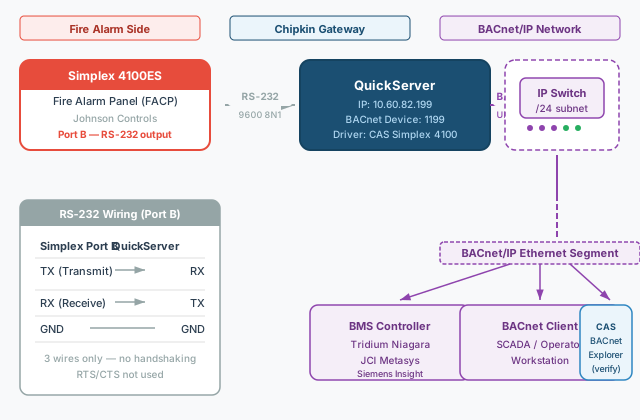
The QuickServer reads alarm, trouble, and supervisory events from the Simplex panel over RS-232 (Port B), then translates them to the target BMS protocol.
Before You Start
Collect the following before submitting a Chipkin configuration request. Missing this information is the primary cause of project delays.
Project Startup Questions
Before a Simplex 4100 job is treated like routine commissioning work, answer these questions:
- Is the panel definitely 4100, 4100ES, or 4100U rather than 4007ES?
- Who is the named qualified fire-panel technician for Port B verification?
- Is data vectoring explicitly confirmed on Port B?
- Is the points list current enough to build the final map?
Panel Information
| Item | Notes |
|---|---|
| Panel model | 4100, 4100ES, or 4100U — not 4007ES (different driver) |
| Number of zones/points | Required to size the gateway and build the config |
| Complete points list | Request a System Setup Printout from the JCI technician — more reliable than drawings |
| Serial port type | RS-232 (standard) or RS-485 (some panels) — confirm with JCI |
[!WARNING] The Simplex 4100 RS-232 port is not active by default. Data vectoring must be explicitly enabled in panel programming by a qualified JCI/Simplex technician. Chipkin cannot perform this remotely. [!CAUTION] Do not treat a scheduled site visit as proof that panel-side work is done. Ask for explicit confirmation of Port B output, serial settings, and data vectoring before the commissioning session starts.
Target Protocol
| Protocol | Typical BMS/SCADA | Notes |
|---|---|---|
| BACnet/IP | Siemens Insight, JCI Metasys, Tridium Niagara | Most common for building automation |
| EtherNet/IP | Allen-Bradley ControlLogix, Siemens PLCs | Industrial / mining |
| Modbus TCP | SCADA, industrial monitoring | Most flexible for custom integrations |
Multi-Party Contacts
Simplex integrations involve at least three organizations. Identify all contacts at intake:
| Role | Who |
|---|---|
| Fire Alarm Contractor | JCI / Simplex field technician — must configure panel Port B |
| BMS/PLC Integrator | Party integrating gateway output into BMS or PLC |
| Building Owner / Facilities | Site access coordination |
[!CAUTION] If the assigned JCI/Simplex technician leaves the project, the integration stalls indefinitely. Confirm a named backup contact at intake.
Configure the Simplex Panel (Panel-Side — JCI Technician Required)
Chipkin cannot configure the panel’s serial output. The JCI/Simplex technician performs these steps before the Chipkin commissioning session.
Enable Data Vectoring
Data vectoring routes alarm and status data to Port B. Without it, the gateway receives nothing.
- Access the Simplex panel programming menu
- Navigate to Serial Port Configuration → Port B
- Chapter 7.5 of the Simplex installation guide (
FS-8700-41) covers Port B settings - Set the output mode to ASCII / serial output
- Enable data vectoring for alarm, trouble, and supervisory categories
- Confirm the baud rate matches the gateway (typically 9600 8N1)
[!TIP] Ask the JCI technician to confirm “Port B is set to ASCII output with data vectoring enabled” in writing before the commissioning session. This prevents the most common multi-visit failure scenario.
Verify Dipswitch Settings
Chapter 8.5 of the installation guide covers the main board dipswitch positions for the serial interface. The technician should photograph the dipswitch state and confirm it matches the integration settings.
Configure the FieldServer / QuickServer
Wiring RS-232
Connect Simplex Port B to the gateway serial port. Three wires only — no hardware handshaking:
| Simplex Port B Pin | FieldServer / QuickServer Pin |
|---|---|
| TX (Transmit) | RX (Receive) |
| RX (Receive) | TX (Transmit) |
| GND | GND |
[!NOTE] RTS/CTS are not used. If the connector has more than three wires, leave all others unconnected.
Serial Port Settings
In the FieldServer Toolbox or QuickServer Web GUI:
| Parameter | Value |
|---|---|
| Driver | CAS Simplex 4100 |
| Port | COM1 (or the port label on the gateway) |
| Baud Rate | Match panel setting (typically 9600) |
| Data Bits | 8 |
| Parity | None |
| Stop Bits | 1 |
Point Mapping
Chipkin builds the configuration from the points list provided at intake:
| Target Protocol | Point Mapping |
|---|---|
| BACnet/IP | Each Simplex point → BACnet Binary Input object |
| EtherNet/IP | Points → Assembly Object data words (confirm layout with PLC programmer) |
| Modbus TCP | Points → holding registers or coils (confirm register map with SCADA engineer) |
Network Settings
Assign a static IP on the same subnet as the BMS or PLC:
| Parameter | Example |
|---|---|
| IP Address | 10.60.82.199 |
| Subnet Mask | 255.255.255.0 |
| Default Gateway | 10.60.82.1 |
Example: Simplex 4100ES → BACnet/IP
This example is based on a real Chipkin deployment (Simplex 4100ES, Johnson Controls, Vancouver BC) integrating into a Tridium Niagara BMS.
Network Topology
The diagram above shows the full topology. Key parameters for this deployment:
QuickServer Settings
| Parameter | Value |
|---|---|
| IP Address | 10.60.82.199 |
| Subnet Mask | 255.255.255.0 |
| Default Gateway | 10.60.82.1 |
| BACnet Device Instance | 1199 (must be unique on the BACnet network) |
| BACnet UDP Port | 47808 |
Serial Port (Simplex side)
| Parameter | Value |
|---|---|
| Driver | CAS Simplex 4100 |
| Port | COM1 |
| Baud Rate | 9600 |
| Data Bits | 8 |
| Parity | None |
| Stop Bits | 1 |
BACnet Object Mapping
Each Simplex zone or point maps to a BACnet Binary Input object. Object names match the zone labels from the Simplex point database:
| Simplex Point | BACnet Object Type | Instance | Active Text | Inactive Text |
|---|---|---|---|---|
| Zone 1 — Lobby Smoke | Binary Input | 1 | ALARM | NORMAL |
| Zone 2 — Stairwell Heat | Binary Input | 2 | ALARM | NORMAL |
| Zone 3 — Sprinkler Flow | Binary Input | 3 | ALARM | NORMAL |
| Zone 1 — Trouble | Binary Input | 11 | TROUBLE | NORMAL |
| Supervisory — Sprinkler Valve | Binary Input | 21 | SUPERVISORY | NORMAL |
| System Trouble | Binary Input | 100 | TROUBLE | NORMAL |
[!TIP] Use CAS BACnet Explorer to perform a Who-Is scan and confirm the QuickServer is visible on the BACnet network before connecting the BMS. Verify the Device Instance is correct and not in conflict with another device.
Verify the BACnet Integration
- Trigger a test alarm from the Simplex panel
- In FieldServer Toolbox diagnostics, confirm the RX counter increments and the corresponding Binary Input object flips to
ALARM - From CAS BACnet Explorer, issue a Who-Is — confirm the QuickServer responds at Device Instance 1199
- Subscribe to COV (Change of Value) notifications on the Binary Input objects for real-time alarm updates
No Data Received (RX Counter Zero)
Symptom: The gateway serial port RX counter does not increment. No alarm or status data appears in the diagnostic view.
Step 1 — Confirm Data Vectoring Is Enabled
This is the cause in the majority of no-communication cases.
- Contact the JCI/Simplex field technician
- Ask: “Is data vectoring enabled on Port B for alarm, trouble, and supervisory categories?”
- If unsure, ask them to check Chapter 7.5 of the installation guide (
FS-8700-41) - If not enabled, the technician must enable it — Chipkin cannot do this remotely
[!WARNING] Do not proceed with any other troubleshooting until data vectoring is confirmed. Attempting further steps without this confirmation results in wasted site visits.
Step 2 — Verify the Correct Serial Port
| Port | Purpose |
|---|---|
| Port A | Panel programming / display — do not use for integration |
| Port B | Integration output — connect the gateway here |
Port A and Port B may share similar connector types — verify the physical cable position.
Step 3 — Verify Serial Wiring
RS-232 requires a crossover. If RX counter is zero despite correct port, swap TX and RX:
| Simplex Port B | FieldServer / QuickServer |
|---|---|
| TX | RX |
| RX | TX |
| GND | GND |
Step 4 — Verify Dipswitch Settings
Have the JCI technician verify dipswitch positions against Chapter 8.5 of the installation guide:
| Symptom | Likely Setting Issue |
|---|---|
| No output at all | Data output mode disabled |
| Garbage characters | Baud rate mismatch |
| Signal but no valid frames | Frame format mismatch (parity/stop bits) |
Step 5 — Confirm Baud Rate Match
| Device | Where to Check |
|---|---|
| Simplex 4100 | Panel programming → Port B settings (JCI technician required) |
| FieldServer / QuickServer | Toolbox / Web GUI → Serial Port → CAS Simplex 4100 port |
Typical values: 9600 or 4800. Baud mismatch produces garbled characters, not zero data.
Data Received But Points Missing or Wrong
Symptom: RX counter is incrementing but zones are missing or labels are wrong.
Incomplete Points List
Chipkin builds the config from the points list provided at intake. Points added after delivery won’t appear.
- Compare gateway point map to the current panel database
- Request an updated System Setup Printout from the JCI technician
- Submit a config update request to Chipkin with the revised list
Driver Model Mismatch
The CAS Simplex 4100 driver is not compatible with the 4007ES. Using the wrong driver produces missing or corrupt data.
| Panel Model | Driver Required |
|---|---|
| Simplex 4100, 4100ES, 4100U | CAS Simplex 4100 |
| Simplex 4007ES | CAS Simplex 4007ES — see separate guide |
Quick Diagnostic Decision Tree
- Start by checking whether the FieldServer or QuickServer RX counter is incrementing.
- If no: confirm whether JCI has enabled data vectoring.
- If data vectoring is not confirmed: stop and contact the JCI technician before proceeding.
- If data vectoring is confirmed but there is still no data: continue with panel-side checks.
- Check whether the cable is on Port B instead of Port A.
- If not: move the cable to Port B.
- Check whether TX and RX are crossed correctly.
- If not: swap the TX and RX wires.
- Check whether baud rate is 9600 or 4800 on both ends.
- If not: align baud rate on the panel and the gateway.
- Check whether the cable is on Port B instead of Port A.
- If yes: check whether all expected points appear in the gateway.
- If not: compare against the points list and confirm the driver model matches the panel family.
- If yes: check whether the BMS, SCADA, or PLC is receiving data.
- If not: use the BACnet/IP example above and recheck IP settings, port values, and Device Instance.
- If yes: communication is confirmed.
- If no: confirm whether JCI has enabled data vectoring.
Summary: Common Failures at a Glance
| Symptom | Most Likely Cause | Fix |
|---|---|---|
| RX counter = 0 | Data vectoring not enabled | JCI technician enables Port B output |
| RX counter = 0 | Wrong port (Port A) | Move cable to Port B |
| RX counter = 0 | TX/RX swapped | Swap the two signal wires |
| Garbled characters | Baud rate mismatch | Set both panel and gateway to 9600 |
| Points missing | Incomplete points list | Request updated zone database from JCI |
| Wrong point values | Driver model mismatch | Confirm 4100 vs 4007ES driver |
| BMS cannot reach gateway | Network/protocol misconfiguration | Check IP, port, Device Instance / Assembly |
Configuration Intake Checklist
Use when opening a Chipkin support ticket:
Panel Information
- Panel model (4100 / 4100ES / 4100U)
- Number of zones and total point count
- Complete points list (System Setup Printout from panel software)
- Serial port type (RS-232 / RS-485)
Panel-Side Status
- JCI/Simplex technician identified and available
- Data vectoring confirmed enabled on Port B
- Baud rate confirmed
- Dipswitch settings verified
Gateway Information
- FieldServer or QuickServer model
- Target protocol (BACnet/IP / EtherNet/IP / Modbus TCP)
- Gateway IP address and subnet
- BACnet Device Instance (if BACnet target)
- EtherNet/IP assembly layout or Modbus register map (if applicable)
Multi-Party Contacts
- Fire alarm contractor name and contact
- BMS/SCADA/PLC engineer contact
- Building owner/facilities contact
Related Articles
- Simplex 4007ES Troubleshooting Guide — for the 4007ES panel (different driver, separate guide)
- EtherNet/IP Integration Guide
- BACnet Discovery and Network Architecture Reference
- Modbus Commissioning Site Toolkit Checklist
- FieldServer Toolbox Connectivity Troubleshooting
Chipkin Tools
- FieldServer
- QuickServer
- Chipkin Support — include panel model, serial port type, and RX counter status in your ticket