
Overview
This issue appears on a QuickServer that previously ran Chipkin AE firmware and was later factory reset back to the original MSA firmware. After the reset, browsing to the gateway IP can show a page like the one below:
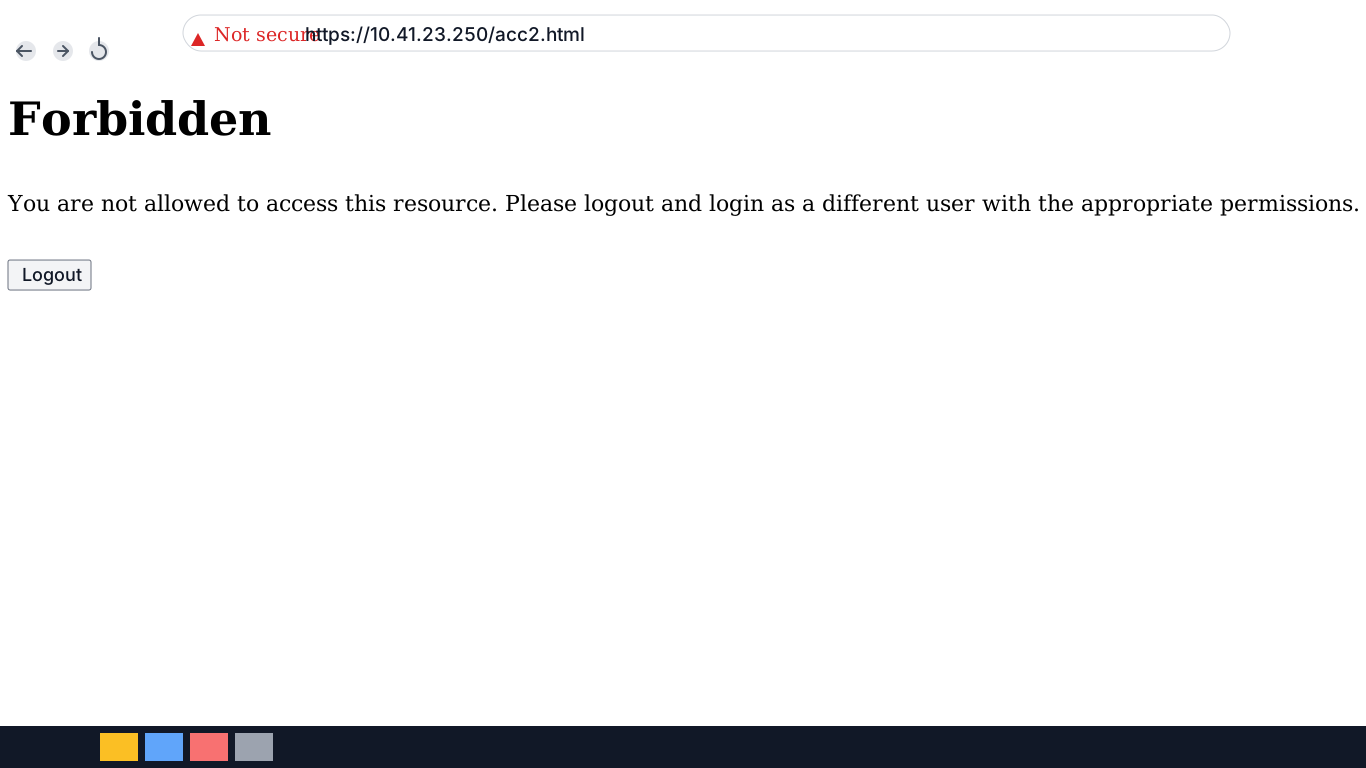
The message usually reads:
Forbidden
You are not allowed to access this resource. Please logout and login as a different user with the appropriate permissions.
Why This Happens
The Chipkin AE firmware adds a new index.htm file to the QuickServer root directory and sets permissions so the Chipkin home page can be opened from the device IP address.
When the QuickServer is later factory reset back to the original MSA firmware, that root index.htm file can remain on the unit while the permissions that allowed access to it are removed. The browser still lands on the leftover root page, but the gateway no longer allows the current firmware/user state to open it, so the web interface returns Forbidden.
This is not usually a hardware failure and it does not typically mean the QuickServer is unreachable. It is a leftover web UI file and permission mismatch caused by switching firmware states.
Recovery Steps
- Confirm that the QuickServer previously had Chipkin AE firmware installed.
- Confirm that the unit was factory reset and is now back on the original MSA firmware.
- Upload the Chipkin AE firmware to the QuickServer again. Use the standard firmware procedure described in How to Upload Firmware.
- After the firmware upload completes, browse to the QuickServer again.
Reinstalling the Chipkin AE firmware restores the Chipkin home page permissions and resolves the Forbidden error in the normal root web UI path.
Direct UI Access Workaround
If you need to reach the interface before the root home page is working again, try opening the UI directly instead of browsing to only the device IP address.
Use:
http://192.168.2.101/htm/fsgui.htmIf the QuickServer is not using the default IP, replace 192.168.2.101 with the device’s actual address.
[!TIP] A direct path such as
/htm/fsgui.htmcan bypass the leftover rootindex.htmproblem and let you reach the configuration UI even whenhttp://<device-ip>/returns Forbidden.
Validation
After recovery, confirm the fix with these checks:
- Browsing to
http://<quickserver-ip>/no longer shows the Forbidden page. - The QuickServer home page loads normally.
- If needed,
http://<quickserver-ip>/htm/fsgui.htmalso opens the expected interface. - You can proceed with normal QuickServer configuration or commissioning tasks.
Troubleshooting
| Symptom | Likely Cause | Action |
|---|---|---|
http://<quickserver-ip>/ shows Forbidden after a factory reset | Leftover Chipkin AE index.htm file remains, but permissions were reset by the MSA firmware state | Reinstall Chipkin AE firmware |
| Root URL fails, but device still responds on the network | Web UI file and permission mismatch rather than a basic network failure | Try http://<quickserver-ip>/htm/fsgui.htm |
| Direct UI path also fails | Firmware state may still be inconsistent, or the wrong IP is being used | Verify the device IP, then reattempt firmware upload |
| Web UI is still unavailable after firmware upload | Firmware recovery did not complete cleanly | Repeat the firmware upload and confirm the correct AE firmware image was used |