
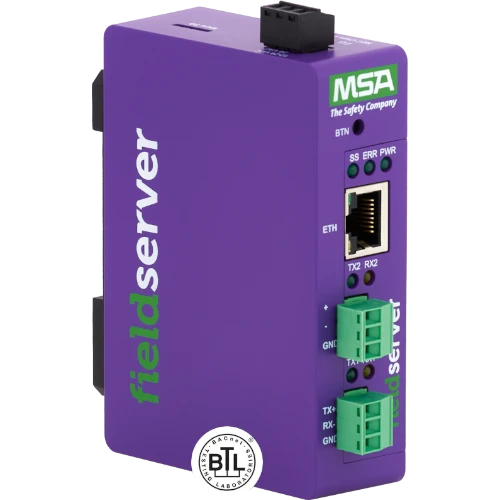
McQuay to BACnet/IP QuickServer Gateway
FS-QS-XXX0-0422
- McQuay
- BACnet/IP
Publishes McQuay points as BACnet objects over Ethernet. Pair with this tool's BACnet/IP output.
View product →Plug a USB-to-RS‑485 adapter into your McQuay / Daikin MicroTech equipment and this page will find every controller on the line, tell you exactly what each one is, read its values, and build the configuration file your Chipkin QuickServer gateway needs to publish that equipment on BACnet or Modbus.
You do not need to know what is installed, and you do not need drawings or a commissioning report. Each MicroTech controller stores its own model and software version in memory, so the equipment identifies itself — and that in turn determines exactly which points it has. Nothing is guessed, and nothing is typed by hand.
Nothing is uploaded anywhere. The search, the readings and the configuration are all produced inside your browser. No equipment data, password or configuration leaves your computer unless you choose to send us the file. This tool only reads — it can never change a setpoint, clear an alarm, or alter anything on your equipment.
The generated CSV loads into a FieldServer QuickServer. Pick the model that matches the protocol the building automation system speaks — that is the same choice as the server protocol in step 4.
FS-QS-XXX0-0422
Publishes McQuay points as BACnet objects over Ethernet. Pair with this tool's BACnet/IP output.
View product →FS-QS-XXX0-0502
The same objects over an RS‑485 MS/TP line, for sites with no BACnet Ethernet. Pair with this tool's BACnet MS/TP output.
View product →FS-QS-XXX0-0591
Maps every point to a holding register over Ethernet. Pair with this tool's Modbus TCP output.
View product →FS-QS-XXX0-0467
The same registers over a serial RS‑485 Modbus line. Pair with this tool's Modbus RTU output.
View product →Your browser will ask which serial port to use — pick the USB-to-RS‑485 adapter connected to the McQuay line. Use an adapter with automatic direction control; the cheaper kind that needs the software to switch between sending and receiving is not reliable at this speed. No hardware to hand? Try with a simulated network walks you through the whole tool using a made-up site.
McQuay equipment cannot be asked “who is out there?” — the protocol has no such question. Instead, the tool calls at each address in turn and asks whatever answers to identify itself, then reads every value it has. One pass captures your whole site.

0 to F.
Searching reads every value from every controller it finds, so it takes a while on a large site — but it means you only have to do it once. Already have a file from a previous search? Open a saved file picks up where it left off, on any computer, with no adapter attached.
| Address | HI | LO | Status | Identifies as | Equipment |
|---|
Everything found on your network, and every value read from it. Open a controller to see its readings.
Save everything to a file keeps these results on your computer. Send that file to Chipkin support and we can build the gateway configuration for you, or open it again later to carry on where you left off — no adapter needed.
Everything found is included by default — every controller, and every point each one has. Untick anything you do not want the gateway to publish.
Only Google Chrome and Microsoft Edge can reach a serial adapter. Firefox and Safari cannot, and never show a port. If you are using the right browser and still see nothing, Windows has not installed a driver for the adapter — open Device Manager and look for an unknown device. Most USB-to-RS‑485 adapters need their driver installed once, from the manufacturer's site.
Try these in order. Swap the two data wires at the adapter
— getting them the wrong way round is by far the most common cause and does no
harm. Widen the address range to 1-255, in case the
equipment is addressed higher than you expected. Try a slower speed
— the tool offers this automatically when a search finds nothing. And check
the adapter is actually wired to the McQuay communication terminals rather than to
another network in the same panel.
That controller is there and working, but it did not accept the password, so its
readings could not be collected. This is still a useful result: it counts towards
your equipment list. Try the factory default FFFFFFFF, or ask whoever
commissioned the equipment. You can also enter a different password on that one
controller from the list in step 3 without searching again.
McQuay equipment sends larger numbers in two halves, and different vintages put those halves in a different order. Open Port settings in step 1 and change How larger numbers are read to Alternative, then read the values again. Temperatures and pressures are unaffected either way; it is the counters that give it away. Whichever setting you land on is written into the configuration file, so the gateway will behave the same as this page did.
McQuay equipment answers with one value at a time, at a speed fixed by the equipment itself, and larger values take two questions rather than one. That is a limitation of the equipment, not of this tool or of the gateway. A site with a few hundred points genuinely takes minutes to read from end to end. Step 5 tells you exactly how long a full pass will take before you download anything, so there are no surprises after installation.
No. This tool only ever reads. There is no code in it that can write a value, so it cannot change a setpoint, start or stop equipment, clear an alarm, or alter a schedule — even by accident. It is safe to run on a live site during normal operation. For the technically minded: the search never writes, because the protocol acknowledges a write even when nothing is at that address — so a write can never prove anything is there, and using one would invent equipment that does not exist.