
Overview
When Modbus TCP communication fails and basic checks (IP, port, Unit ID) don’t reveal the issue, packet-level analysis with Wireshark is the definitive diagnostic tool. Wireshark lets you see exactly what bytes are on the wire — confirming whether requests are being sent, responses are arriving, and the MBAP header fields are correct.
This article covers the full Wireshark workflow for Modbus TCP troubleshooting: hardware setup, capture configuration, display filtering, and packet interpretation.
[!TIP] Wireshark is a free download from wireshark.org. Install it on a laptop you bring to site.
Before You Start
Confirm these prerequisites before capturing:
- Wireshark installed on your laptop
- Physical network access — your laptop must be connected to the same network segment as the Modbus TCP devices
- Hub or managed switch with port mirroring — see Hub vs Switch below
- Known device IPs — the master/client IP and slave/server IP(s)
- Standard Modbus port — TCP port 502 (confirm if any devices use non-standard ports)
Hub vs Switch — Why It Matters
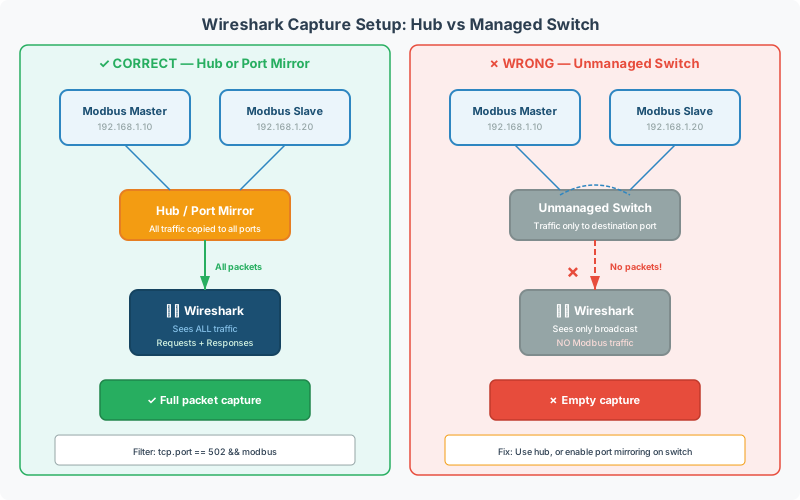
This is the most common reason a Wireshark capture shows no Modbus traffic even though communication is active.
The Problem
A network switch learns which MAC address is on each port and only forwards traffic to the correct port. If your laptop is on port 3 and the Modbus master and slave are on ports 1 and 2, the switch never copies their traffic to port 3 — your capture sees nothing.
A hub copies all traffic to all ports. This is what you need.
Solutions
| Approach | How It Works |
|---|---|
| Use a hub | A true hub (not a re-labeled switch) mirrors all traffic to all ports. Plug the master, slave, and your laptop into the hub. |
| Managed switch with port mirroring | Configure a “mirror” or “monitor” port on the switch that copies traffic from the master/slave ports to your laptop’s port. |
| Inline tap | A passive network tap sits between two devices and provides a copy of the traffic to a monitoring port. |
[!WARNING] Just because a device says “hub” on the label doesn’t mean it is one. If the product description mentions “full-duplex” it is almost certainly a switch. A switch that lets you turn off learning mode or has a dedicated monitor port will work.
Speed Mismatch
Not all hubs copy 10 Mbps traffic to 100 Mbps ports and vice versa. If you’re on a mixed-speed network:
- Use a 10 Mbps hub — most faster devices are speed-sensing and will downgrade to 10 Mbps
- Some building automation controllers have fixed port speeds configured in software — these won’t auto-negotiate
- If needed, connect higher-speed devices to a secondary switch/hub, then uplink to the 10 Mbps hub
Step-by-Step Capture
1. Select the Network Interface
- Open Wireshark
- Go to Capture → Interfaces (or click the shark fin icon)
- Select the wired Ethernet adapter connected to the Modbus network — watch for the interface with an increasing packet count
- Do not select the wireless adapter unless you’re specifically troubleshooting Wi-Fi-connected Modbus devices
2. Start Capturing
Click Start to begin capturing all traffic on the selected interface.
[!TIP] Avoid setting capture filters initially. Capture everything and use display filters to narrow your view afterward. A capture filter might accidentally exclude the packets you need — for example, if a device is sending traffic on a non-standard port or using an unexpected IP.
3. Apply Display Filters
Once packets are accumulating, apply a display filter to show only Modbus traffic. Type the filter into the filter bar and click Apply (or press Enter).
Essential Modbus Display Filters
| Filter | What It Shows |
|---|---|
mbtcp | All Modbus TCP traffic |
modbus | All Modbus protocol traffic (TCP and encapsulated) |
ip.addr == 192.168.1.90 | All traffic to/from a specific IP |
ip.dst == 192.168.1.90 | Traffic sent TO a specific IP |
ip.src == 192.168.1.90 | Traffic sent FROM a specific IP |
modbus.unit_id == 11 | All messages for Modbus Unit ID 11 |
tcp.port == 502 | All traffic on the standard Modbus port |
modbus.func_code == 3 | Only FC03 (Read Holding Registers) messages |
modbus.func_code >= 128 | Only exception responses (error bit set) |
Combining Filters
Use and, or, and not to combine filters:
mbtcp and ip.addr == 192.168.1.90modbus.unit_id == 11 and modbus.func_code == 3mbtcp and not ip.addr == 192.168.1.1[!NOTE] The
mbtcpfilter is the simplest starting point. If you see nothing withmbtcp, check that your hub/switch setup is correct and that Modbus communication is actually running.
4. Inspect a Packet
Click on any packet in the list to see its full breakdown in the detail pane below. Expand the protocol layers to drill down:
- Frame — raw Ethernet frame info
- Ethernet II — source/destination MAC addresses
- Internet Protocol — source/destination IP addresses
- Transmission Control Protocol — port numbers, sequence numbers
- Modbus/TCP — MBAP header (Transaction ID, Protocol ID, Length, Unit ID)
- Modbus — function code, register addresses, data values
Think of the layers like nested envelopes — each protocol wraps the one above it. The Modbus payload is the innermost layer.
5. Mark and Save Packets
- Right-click → Mark Packet to flag packets of interest
- File → Export Specified Packets to save only marked packets
- Save captures as
.pcapngfor maximum compatibility
Capture Filters (Optional, Advanced)
Capture filters limit what Wireshark records to disk. They use a different syntax than display filters (BPF syntax). Only use these when you need to reduce file size during long captures.
| Capture Filter | Effect |
|---|---|
port 502 | Only Modbus TCP (standard port) |
host 192.168.1.81 | All traffic to/from one device |
host 192.168.1.81 and port not 1024 | One device, excluding RUInet traffic |
net 192.168.0.0/24 | All traffic on a /24 subnet |
src net 192.168.0.0/24 | Traffic FROM a subnet |
dst net 192.168.0.0/24 | Traffic TO a subnet |
[!CAUTION] Capture filters cannot be changed while a capture is running. If you filter too aggressively, you may miss the packets causing the problem. A device hammering the Modbus slave with non-Modbus traffic won’t show up if you filter to
port 502only. When in doubt, capture everything and filter the display.
Common Diagnostic Scenarios
No Response from Slave
Symptoms: Wireshark shows request packets leaving the master but no response packets from the slave.
Check:
- Is the slave IP correct? Look at the destination IP in the request packet
- Is the Unit ID correct? Expand the Modbus/TCP layer and check the Unit Identifier field
- Is the slave physically connected and powered? Use
pingto verify network-layer connectivity - Is the slave’s Modbus TCP service running on port 502? Some devices require explicit enabling
Exception Responses
Symptoms: Slave responds, but with a function code of 0x80 + original FC (e.g., 0x83 for FC03 error).
Expand the Modbus layer to see the exception code:
| Exception Code | Meaning | Likely Cause |
|---|---|---|
| 0x01 | Illegal Function | Device doesn’t support the requested function code |
| 0x02 | Illegal Data Address | Register address out of range or off-by-one error |
| 0x03 | Illegal Data Value | Write value out of allowed range |
| 0x04 | Slave Device Failure | Internal device error |
See the full Exception Codes Reference for all codes and diagnostic steps.
Transaction ID Mismatch
Symptoms: Responses arrive but the master ignores them.
The MBAP header Transaction ID in the response must match the request. If the slave is responding to a previous request (due to network delays), the Transaction IDs won’t match. Check both the request and response Transaction ID fields in the Modbus/TCP layer.
Bandwidth or Timing Issues
Symptoms: Intermittent timeouts or slow polling.
Use Wireshark’s Statistics → I/O Graphs to visualize traffic over time. Filter by mbtcp to see Modbus-specific throughput. Look for:
- Bursts of traffic followed by gaps (master polling too fast)
- TCP retransmissions (filter:
tcp.analysis.retransmission) - High response times (check delta time between request and response)
Wireshark Expression Builder
For complex filtering, use Analyze → Display Filter Expression to build filters from a dropdown list. Under the Modbus protocol section, available fields include:
modbus.byte_cnt— byte count in responsemodbus.exception_code— exception response codemodbus.func_code— function codemodbus.reference_num— starting register addressmodbus.word_cnt— word/register countmodbus.regval_uint16— register value (unsigned 16-bit)modbus_tcp.len— MBAP length fieldmodbus_tcp.prot_id— protocol ID (should be 0 for Modbus)modbus_tcp.trans_id— transaction IDmodbus_tcp.unit_id— unit identifier
Quick Reference Cheat Sheet
| Task | Filter / Action |
|---|---|
| Show all Modbus traffic | mbtcp |
| Show errors only | modbus.func_code >= 128 |
| Show traffic for one device | ip.addr == x.x.x.x |
| Show one Unit ID | modbus.unit_id == N |
| Show one function code | modbus.func_code == N |
| Show retransmissions | tcp.analysis.retransmission |
| Sort by column | Click column header (Source, Destination, etc.) |
| Mark a packet | Right-click → Mark Packet |
| Export marked packets | File → Export Specified Packets → Marked only |
Related Articles
- Modbus TCP MBAP Header & Message Format Reference — detailed MBAP header field breakdown
- Modbus Exception Codes & Error Handling Reference — all exception codes with diagnostic steps
- Modbus Troubleshooting Guide — broader troubleshooting beyond packet capture
- Modbus Device Discovery & Network Scanning Guide — finding devices before capturing
- Modbus RTU Pre-Commissioning Checklist — pre-deployment verification steps
- Modbus RTU Multi-Device Daisy Chain Wiring Guide — physical topology for serial networks
Chipkin Can Help
Need help analyzing a Modbus TCP capture? Chipkin support can review your .pcapng files and identify the root cause. For protocol conversion between Modbus TCP and BACnet or other protocols, see the QuickServer gateway.