
Overview
While most modern Modbus RTU installations use RS-485 for its multi-drop capability and longer cable runs, RS-232 is still common on legacy equipment, building controllers, VFDs, and devices with DB9 serial ports. RS-232 is also used for console/configuration access on many gateways and protocol converters.
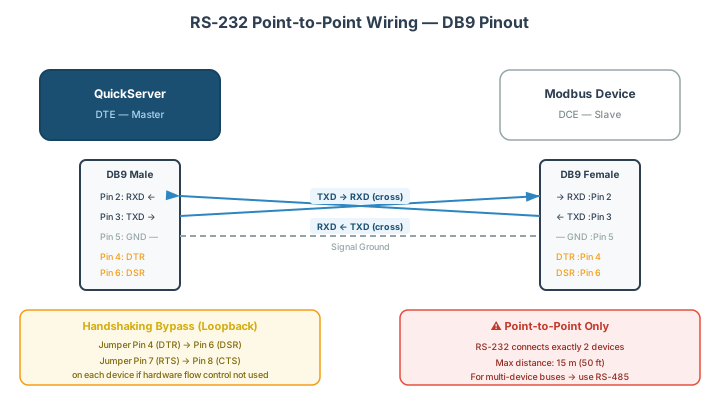
This article covers RS-232 wiring for Modbus RTU — pin assignments, cable types, handshaking bypass, and the most common wiring mistakes.
[!NOTE] For RS-485 wiring (the more common physical layer for Modbus RTU bus networks), see the RS-485 Physical Layer Wiring & Termination Reference.
RS-232 vs RS-485
| Parameter | RS-232 | RS-485 |
|---|---|---|
| Topology | Point-to-point only (2 devices) | Multi-drop bus (up to 32+ devices) |
| Max distance | 15 m (50 ft) at standard rates | 1,200 m (4,000 ft) |
| Signaling | Single-ended (referenced to ground) | Differential pair |
| Voltage levels | ±3 V to ±15 V | ±1.5 V to ±6 V differential |
| Devices per segment | 1 driver, 1 receiver | 1 driver, up to 256 receivers (with repeaters) |
| Connectors | DB9 (DE-9), DB25 | Screw terminals (typically) |
Key takeaway: RS-232 is point-to-point only. You cannot connect multiple Modbus slaves on an RS-232 bus — use RS-485 for multi-device networks. See the Modbus RTU Multi-Device Daisy Chain Wiring Guide for multi-drop configurations.
DB9 Pin Assignments
The standard DB9 (DE-9) connector for RS-232:
| Pin | Signal | Direction (DTE) | Description |
|---|---|---|---|
| 1 | DCD | Input | Data Carrier Detect |
| 2 | RXD | Input | Receive Data |
| 3 | TXD | Output | Transmit Data |
| 4 | DTR | Output | Data Terminal Ready |
| 5 | GND | — | Signal Ground |
| 6 | DSR | Input | Data Set Ready |
| 7 | RTS | Output | Request to Send |
| 8 | CTS | Input | Clear to Send |
| 9 | RI | Input | Ring Indicator |
[!NOTE] “DTE” means Data Terminal Equipment — that’s your laptop, PC, or master controller. “DCE” means Data Communications Equipment — that’s a modem or some converters. DTE and DCE swap TX/RX pin assignments, which is why null modem cables exist.
The Three Essential Pins
For basic Modbus RTU communication, only three pins are required:
| Pin | Signal | Purpose |
|---|---|---|
| 2 | RXD | Receive data |
| 3 | TXD | Transmit data |
| 5 | GND | Signal reference ground |
All other pins are for flow control (handshaking) and may need to be bypassed — see Handshaking Bypass below.
Cable Types
Straight-Through Cable (DTE to DCE)
Connects pin-for-pin: pin 2 to pin 2, pin 3 to pin 3, etc. Use when connecting a DTE device (PC) to a DCE device (modem or converter).
| PC End (DTE) | Device End (DCE) |
|---|---|
| Pin 2 (RXD) | Pin 2 (TXD)* |
| Pin 3 (TXD) | Pin 3 (RXD)* |
| Pin 5 (GND) | Pin 5 (GND) |
*DCE devices internally swap TX/RX, so a straight-through cable works.
Null Modem Cable (DTE to DTE)
Crosses pins 2 and 3 so that each device’s transmit connects to the other device’s receive. This is the cable you need when connecting two DTE devices — for example, a laptop to a Modbus controller.
| Laptop End | Controller End |
|---|---|
| Pin 2 (RXD) | Pin 3 (TXD) |
| Pin 3 (TXD) | Pin 2 (RXD) |
| Pin 5 (GND) | Pin 5 (GND) |
[!TIP] If you connect two devices and the TX LED blinks but you’re getting no data, you almost certainly need a null modem adapter. Carry a small inline null modem adapter in your commissioning toolkit — it’s easier than re-wiring cables on site.
How to Tell Which Cable You Need
- If one device is labeled DTE and the other DCE → straight-through
- If both devices are DTE (most common: PC to controller) → null modem (crossover)
- If you don’t know → try one, and if it doesn’t work, swap pins 2 and 3
Handshaking Bypass Jumpers
Many serial ports require hardware handshaking signals (RTS/CTS, DTR/DSR) to be asserted before they will transmit or receive data. Modbus RTU does not use hardware handshaking — it relies on timing (3.5-character silent interval) for message framing.
If a device’s serial port is waiting for CTS or DSR before sending data, communication will fail even though the baud rate, parity, and wiring are correct.
The Fix: Jumper Handshaking Signals
Loop the handshaking outputs back to the handshaking inputs on each connector so the device “thinks” it has permission to send.
Standard Bypass Jumper Scheme (DB9)
On each connector, make these jumpers:
| Jumper | Pins | Effect |
|---|---|---|
| RTS → CTS | Pin 7 → Pin 8 | Device’s “request to send” immediately satisfies “clear to send” |
| DTR → DSR + DCD | Pin 4 → Pin 6 + Pin 1 | Device asserts “terminal ready” and immediately sees “data set ready” + “carrier detect” |
This tells the port: “the remote device is ready, carrier is detected, you’re clear to send.”
[!WARNING] Don’t skip the DTR → DCD jumper (pin 4 → pin 1). Some devices and drivers will not open the serial port without DCD asserted, even if CTS is satisfied.
Full Null Modem with Handshaking Bypass
For a DTE-to-DTE connection with full handshaking bypass in a single cable:
| Side A | Side B | Purpose |
|---|---|---|
| Pin 2 (RXD) | Pin 3 (TXD) | Data crossover |
| Pin 3 (TXD) | Pin 2 (RXD) | Data crossover |
| Pin 5 (GND) | Pin 5 (GND) | Ground |
| Pin 7 (RTS) → Pin 8 (CTS) | jumpered locally | Bypass on Side A |
| Pin 4 (DTR) → Pin 6 (DSR) + Pin 1 (DCD) | jumpered locally | Bypass on Side A |
| jumpered locally | Pin 7 (RTS) → Pin 8 (CTS) | Bypass on Side B |
| jumpered locally | Pin 4 (DTR) → Pin 6 (DSR) + Pin 1 (DCD) | Bypass on Side B |
Software Flow Control (XON/XOFF)
Some devices use software flow control (XON/XOFF) instead of hardware handshaking. This inserts control characters (0x11 for XON, 0x13 for XOFF) into the data stream.
[!CAUTION] Do not enable XON/XOFF flow control for Modbus RTU. The control characters (0x11, 0x13) can appear as valid data bytes within Modbus messages, causing framing errors and corrupted data.
Set flow control to None for all Modbus RTU connections.
Serial Port Settings
Verify these settings match on both the master and slave:
| Parameter | Common Values | Default |
|---|---|---|
| Baud rate | 9600, 19200, 38400, 115200 | 9600 (most common) |
| Data bits | 8 | 8 |
| Parity | None, Even, Odd | None (N) or Even (E) |
| Stop bits | 1, 2 | 1 |
| Flow control | None | None |
[!TIP] The most common Modbus RTU serial settings are 9600, 8, N, 1 (9600 baud, 8 data bits, No parity, 1 stop bit). If the device documentation doesn’t specify, try this first.
Common Wiring Mistakes
| Symptom | Likely Cause | Fix |
|---|---|---|
| TX LED blinks but no data received | TX/RX pins need crossing | Use null modem adapter or swap pins 2 and 3 |
| Port opens but no communication | Handshaking signals not asserted | Apply bypass jumpers |
| Garbled data, framing errors | Baud rate or parity mismatch | Verify serial settings match on both ends |
| Communication works briefly then stops | Software flow control (XON/XOFF) enabled | Disable flow control — set to None |
| Intermittent errors on long cables | Cable too long for RS-232 (>15 m) | Switch to RS-485 or use a shorter cable |
| No COM port in Device Manager | USB-to-serial driver not installed | Install the correct driver — see USB driver guide |
When to Use RS-232 vs RS-485
| Scenario | Recommended |
|---|---|
| Single device, short cable (<15 m) | RS-232 is fine |
| Multiple devices on one bus | RS-485 required |
| Long cable runs (>15 m) | RS-485 required |
| Console/configuration port access | RS-232 (most devices use it for console) |
| New installation | RS-485 preferred for all Modbus RTU |
Related Articles
- RS-485 Physical Layer Wiring & Termination Reference — the multi-drop alternative to RS-232
- Modbus RTU Multi-Device Daisy Chain Wiring Guide — bus topology for RS-485
- Modbus RTU vs ASCII Transmission Modes Explained — framing differences over serial
- Modbus RTU Pre-Commissioning Checklist — verification steps before going to site
- Modbus Commissioning Site Toolkit Checklist — physical tools to bring
- How to Install the Driver for the Abacus USB Converter — USB serial driver installation
- Modbus CRC & LRC Error Checking — diagnosing data integrity issues
Chipkin Can Help
Need help wiring a serial connection to a QuickServer gateway? Chipkin support can provide wiring diagrams specific to your device model and help troubleshoot serial communication issues.